
Link a destination account
Add a dev or test account and execute the change set Washery prepares.
A destination is a dev or test account that receives masked copies. Linking it takes two changes in AWS, and you make both.
Steps
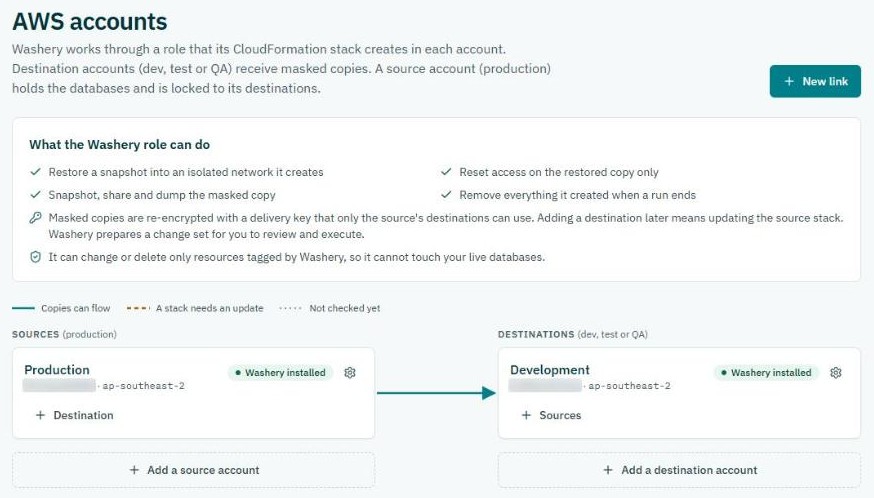
- In Washery, open AWS accounts and choose + Destination on the source account, or Add a destination account. New masked copy also asks for the destination when you create a copy.
- Enter the destination account ID.
- Sign in to the destination account and open the link Washery gives you. Create the stack.
- Washery then prepares a change set on the stack in your source account. It adds the destination to the accounts allowed to use the delivery key.
- Sign in to the source account and choose Review the change set in Washery. Check it in CloudFormation and choose Execute change set.
- Go back to Washery. When the update finishes, AWS accounts shows the link.
Why you execute the change set
Washery never changes a stack. Its roles can prepare a change set from a template Washery has published, and are denied executing one. A person in your account reviews the change and applies it with their permissions.
What the destination stack creates
- A role Washery uses to copy a shared masked snapshot into the account, restore it, or write backup files to a bucket you choose.
- A key that encrypts the copies in that account.
Nothing has to be typed into the stack. You choose the subnet group, security groups, database to replace or bucket in Washery, for each copy.
Related
Still stuck
Tell us what you were doing and what you saw.