
Connect your AWS account
Create the Washery stack in your production account and see what it lets Washery do.
Before you start
- Sign in to the AWS account that holds the database you want to mask, with permission to create CloudFormation stacks and IAM roles.
- If someone else has that access, choose Send this to your AWS admin in Washery. They get an email and finish this step for you.
Steps
-
In Washery, open guided setup, or AWS accounts then Add a source account.
-
Enter the 12-digit account ID, choose the Region of your databases, then choose Continue.
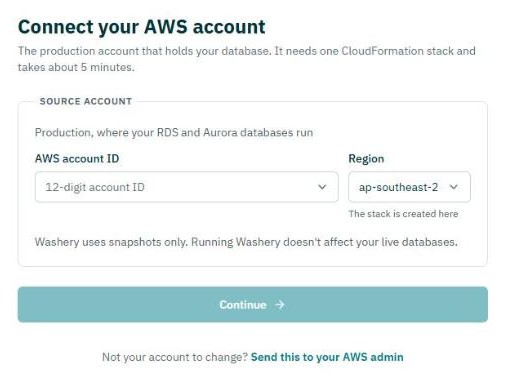
Washery creates the stack in the Region you choose, so pick the one your databases are in. -
Choose Open in CloudFormation. It opens CloudFormation with the stack filled in.
-
Tick the box that acknowledges the stack creates IAM resources, then choose Create stack.
-
Go back to Washery. The page checks every 10 seconds and moves on when the stack is ready, in about 5 minutes.
The link is made for one account. If the console is signed in to a different account, the stack refuses to create.
What the stack creates
- A role that Washery assumes, with an external ID that belongs to your workspace.
- A network with no route to the internet, where the copy is restored and masked.
- A container task that does the profiling and masking, and an S3 folder for its results and logs.
- A delivery key. Every masked copy is encrypted with it before it is shared, and only your destination accounts can use it.
The diagram of Washery in your AWS accounts shows these resources and what moves between your accounts.
What the role can and cannot do
The role can list your databases and snapshots, restore a snapshot as a new database named washery-*, and snapshot, share and delete only what it made.
It cannot modify, stop, reboot or delete your databases, and it cannot share or delete your snapshots. Both are explicit denies in the role.
Washery uses snapshots only. Running Washery does not impact your live database.
Related
Still stuck
Tell us what you were doing and what you saw.